This section walks you through the process to that you need to follow to use Formulate Custom Columns to create some example calculations.
Formulate
Opening the Custom Column Editor
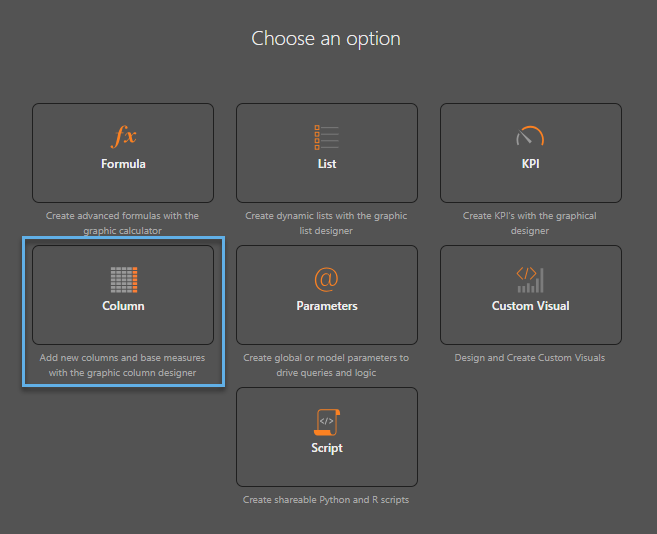
Your first step is to open Formulate and select Column. You will then need to choose your required Model to open the Custom Column editor.
Example 1: Create a new attribute
Creating a new attribute using string-based functions.
- Click here for step-by-step instructions
Example 2: Create a new measure
Creating a new Measure using numerical processing.
- Click here for step-by-step instructions
Example 3: Create a new measure
Creating a new Custom Column using the Script Editor
- Click here for step-by-step instructions